
Shop by Category
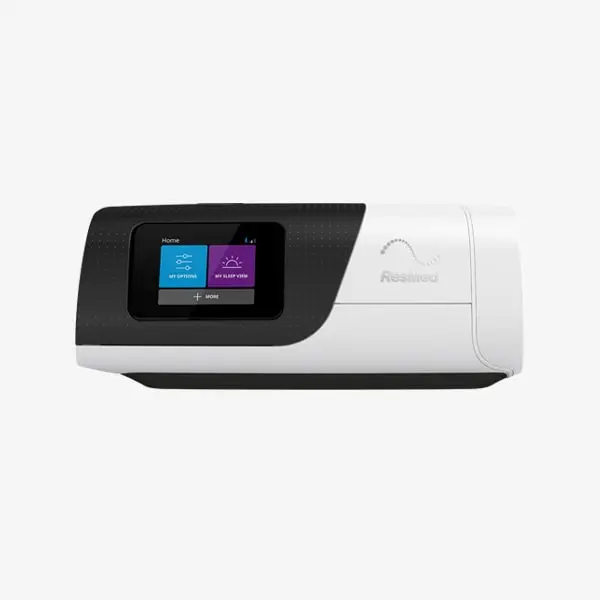
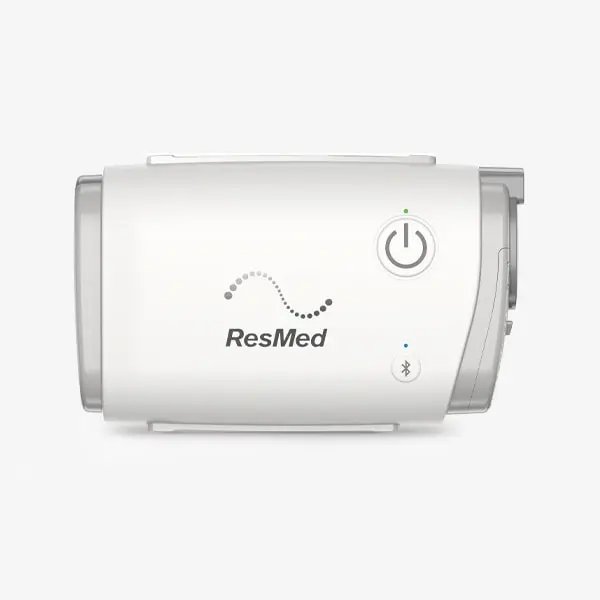
AirSense Treatment Data Guide
How to Send Your AirSense Treatment Data
Follow these simple steps to copy the treatment data from your AirSense 10 or AirSense 11 SD card and send it to our support team for review.
AirSense 10
AirSense 11
SD Card Data
Support Review
What Information Can Be Checked?
The SD card contains useful therapy information that can help our support team better understand your treatment data.
AHI / Sleep Apnea Index
Review your apnea-hypopnea index and general therapy performance.
Mask Leak Levels
Check if mask leaks may be affecting your therapy comfort or results.
Pressure Levels
Review therapy pressure information and pressure range behaviour.
Usage Time
Check therapy usage time and general compliance information.
Before You Send the Data
Please copy the files exactly as they appear on the SD card. Do not delete, rename, edit or move individual files from the SD card. This helps keep the treatment data complete and readable.
Step-by-Step Instructions
Follow the steps below to safely copy the AirSense SD card files to your computer.
1
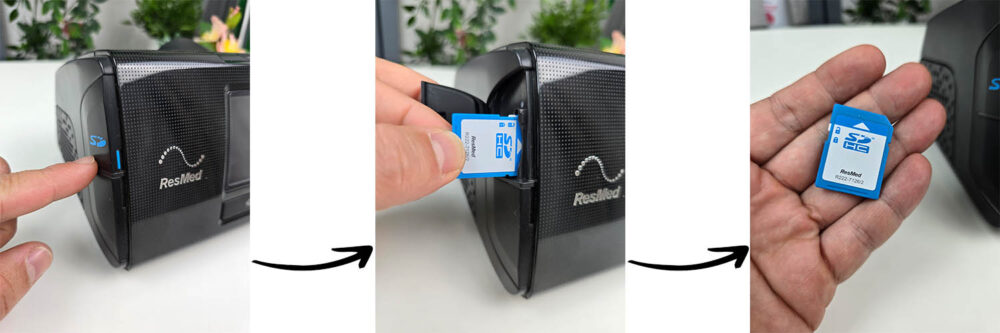
Remove the SD Card
Remove the SD card from your AirSense device carefully, as shown below.
2
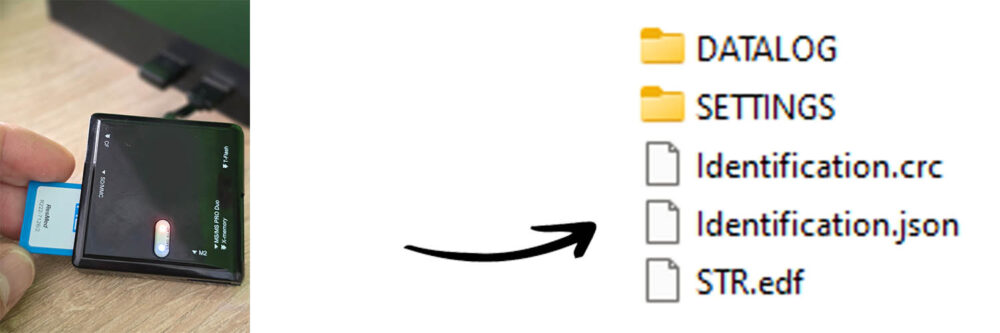
Insert the SD Card Into Your Computer
Use your computer’s SD card slot or an external card reader. Open the SD card folder on your computer.
3
Copy the SD Card Files
Select all files and folders from the SD card, then copy and paste them into a new folder on your computer.
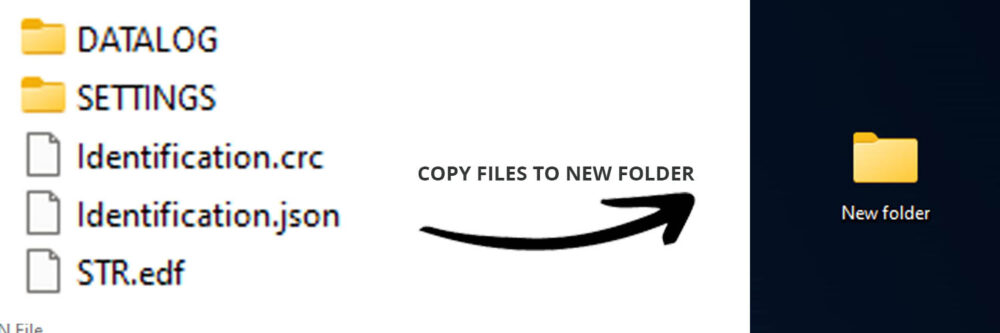
Important: Do not delete, rename or edit the files from the SD card. Copy them exactly as they appear.
How to Send the Files
After copying the SD card files to your computer, prepare them in one ZIP file and send them to our support team.
Prepare the Folder
Create a new folder on your computer and paste all copied SD card files inside.
- Create a new folder
- Paste all SD card files inside
- Do not change file names
Send the ZIP File
Compress the folder into a ZIP file and send it to our support team.
- Compress the folder into ZIP
- Send by email or file transfer
- You can use WeTransfer, Google Drive, OneDrive or Dropbox
If the ZIP file is too large for email, please use WeTransfer, Google Drive, OneDrive or Dropbox and send us the download link.
Frequently Asked Questions
Can I send only screenshots from my device?
Screenshots may show basic information, but the SD card files usually provide more complete treatment data for review.
Should I delete anything from the SD card?
No. Please do not delete, rename or edit any files from the SD card. Copy the files exactly as they appear.
Can I use WeTransfer?
Yes. If the ZIP file is large, WeTransfer is one of the easiest ways to send the copied treatment data folder.
Does this guide apply to AirSense 10 and AirSense 11?
Yes. This guide is suitable for sending SD card treatment data from AirSense 10 and AirSense 11 devices.
Can your support team adjust my therapy settings?
Our team can help review the available data and guide you with product or support questions. Therapy setting changes should always follow medical advice or the instructions of your sleep specialist.
Ready to Send Your Treatment Data?
Zip the copied folder and send it to our support team. If the file is large, use WeTransfer or another file-sharing service.